“What does this metric mean exactly?”
If you build reports for other people, you have heard this question many times. Often from the same readers, about the same metrics, and sometimes in the middle of a meeting that should be about the business, not about definitions.
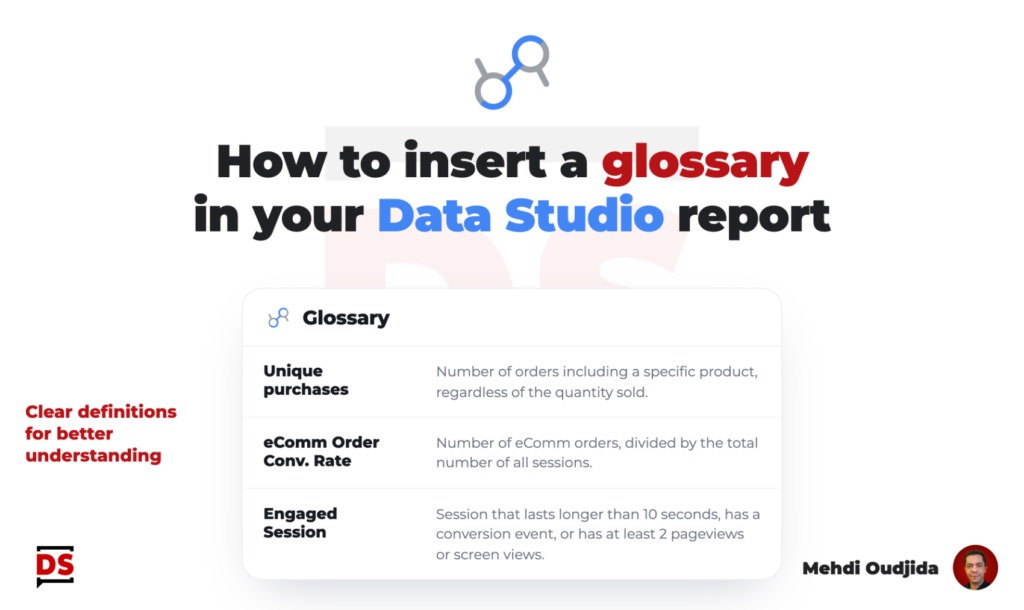
Every Data Studio report deserves its glossary. Not 3 obvious terms in a footnote, but a real reference listing every metric and dimension displayed in the report, reachable in one click from any page.
But a glossary is useful only if it speaks the language of the report and of its readers. Copying the documentation of your analytics tool is a starting point, not a glossary. A useful glossary is customized for:
- The data displayed in the report: renamed fields, calculated fields, filtered scopes… “eComm Order Conv. Rate” in your scorecard is not a native metric of your data source. It is your own definition (here, eComm orders divided by all sessions), and it has to be written somewhere
- The audience of the report: an executive committee, a traffic acquisition team and data analysts don’t need the same level of detail. The same term can deserve a one-line business definition for some readers and the calculation method for others
- The vocabulary of this audience: each organization has its own words. Leads, form submissions, quotes, conversions, key events… The glossary must use the words your readers use every day, and link them to the fields of the report when they differ
Built this way, the glossary becomes a part of the report design, like the legend of a chart. It is also a small piece of data governance: definitions are written once, validated with the stakeholders, and shared across reports.
So, let’s see how to build a searchable glossary inside Data Studio, and how to reuse parts of it as contextual glossaries in the other pages of your report.
The result
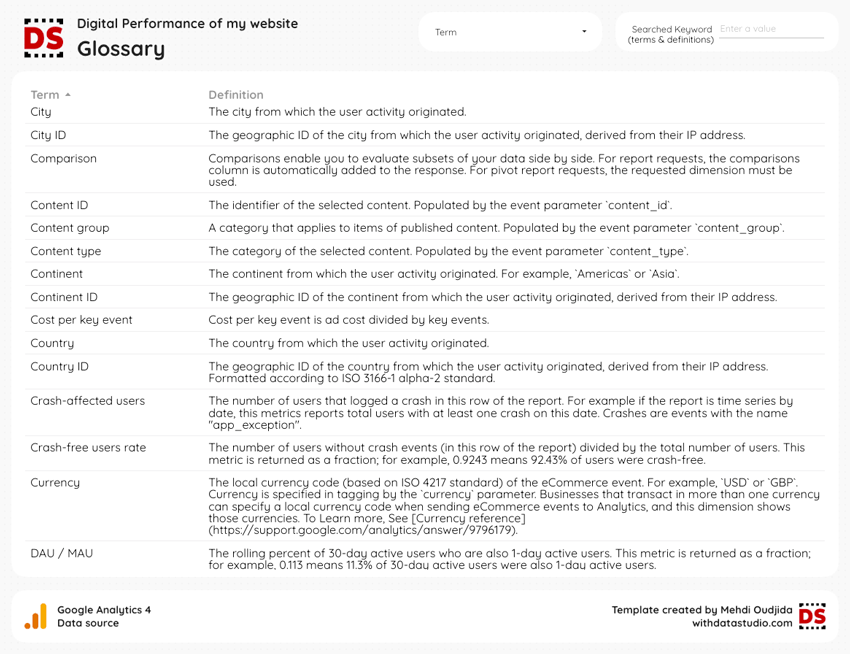
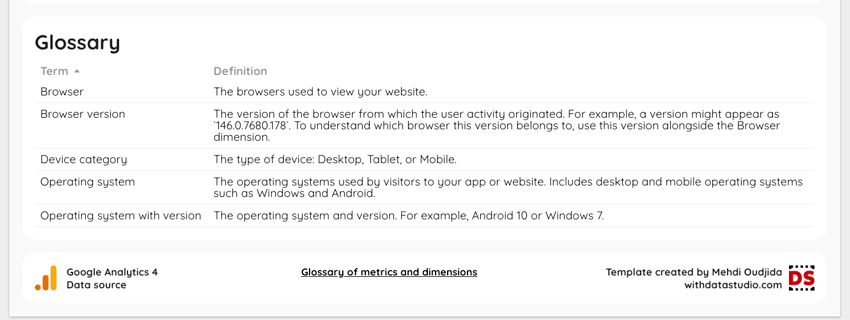
At the end of this tutorial, the glossary will be available in a dedicated glossary page, with a search on terms and definitions at the same time. It can also be offered, optionally, at the bottom of the report pages, displaying only the terms related to the charts of the page, with a link to the full glossary.
Ingredients
For this configuration, we will need the following elements:
- A Google Sheets file storing the glossary: terms, tags and definitions
- A text parameter to enter the searched keyword
- A calculated field at the data source level, checking if the keyword is present in the term or in its definition
- A filter based on this calculated field
- A glossary page with a table chart, a drop-down list and an input box
- Tag-based filters to display parts of the glossary in the other report pages
- A text link to the glossary page
Your glossary in Google Sheets
First, let’s create a Google Sheets file with one row per term and the following columns:
- Term: the name of the field exactly as displayed in your report, including your renamings
- Tags: one or more tags to group the terms by topic. I write them as hashtags (ex: #DeviceTechnologies): easy to spot, and several tags can live in the same cell
- Definition: the definition written for the audience of the report
For this example, the glossary lists Google Analytics dimensions and metrics. But of course, you can apply the same recipe to any list of terms, and store it in any data source: a BigQuery table of your data dictionary, a CSV file…
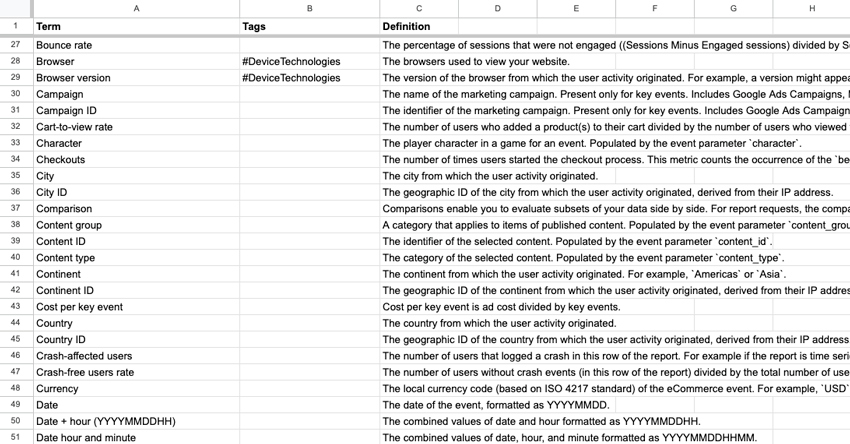
Then, add the tab as a new data source of your report.
Parameter for the searched keyword
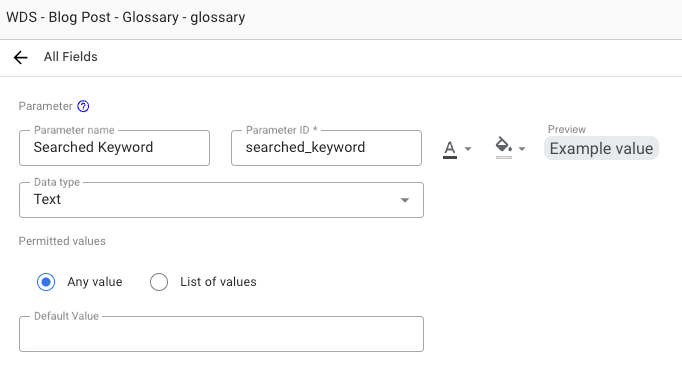
Now, let’s create a parameter in the glossary data source to store the keyword entered by the reader:
- Parameter name: “Searched Keyword”
- Parameter ID: “searched_keyword”
- Data type: Text
- Permitted values: Any value
- Default value: none
The empty default value matters: no keyword means no filtering, as you will see with the calculated field below.
Calculated field to match the keyword
Why not simply add an input box control on the “Term” field? Because a filter control works on a single field. The reader would find “Engaged session” by typing “engaged”, but not by typing “10 seconds”. Here, we want to search in the terms and in the definitions at the same time. And even more important, the search ignores the case of the typed keyword, thanks to the calculated field below.
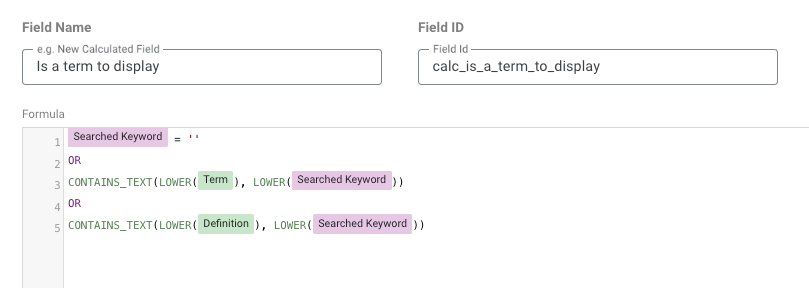
So, let’s add the calculated field “Is a term to display” in the glossary data source.
Is a term to displaySearched Keyword = ''
OR
CONTAINS_TEXT(LOWER(Term), LOWER(Searched Keyword))
OR
CONTAINS_TEXT(LOWER(Definition), LOWER(Searched Keyword))
Explanation of the formula: The field returns true when no keyword has been entered, or when the keyword is found in the term or in the definition. The LOWER function applied on both sides makes the search case-insensitive.
Filter on the terms to display
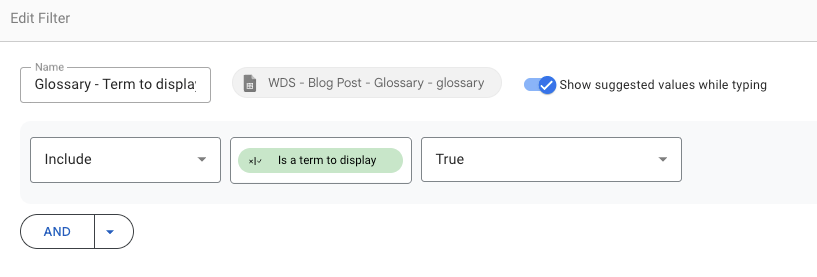
Then, create the filter that will keep only the matching rows of the glossary:
- Name: “Glossary – Term to display”
- Data source: your glossary data source
- Condition: Include “Is a term to display” True
The glossary page
Now, let’s add a page dedicated to the glossary. I like to put it at the end of the report, so it can be reached from any page with a link to the last page.
The table chart is configured as follows:
- Chart type: Table
- Setup tab
- Data source: your glossary data source
- Dimensions: “Term”, “Definition”
- Metric: none (remove the default metric)
- Sort: “Term” ascending
- Filter: “Glossary – Term to display”
- Style tab
- Table body: wrap text
- Hide row numbers
- Adapt the column widths: narrow for the terms, wide for the definitions
- Adapt the other style options following your report design
Then, add the 2 controls above the table:
- A drop-down list with “Term” as control field, to select one or several terms in the list
- An input box with the “Searched Keyword” parameter as control field. You can add, below the parameter name, a text element telling readers that the search covers the terms and the definitions.
Contextual glossaries with tags
The glossary page is the reference. But readers may need definitions where they read the data, on the same page. So, let’s reuse the glossary at the bottom of the report pages, displaying only the terms of the page. I like to use this solution, especially when the defined term is mentioned only on a specific page.
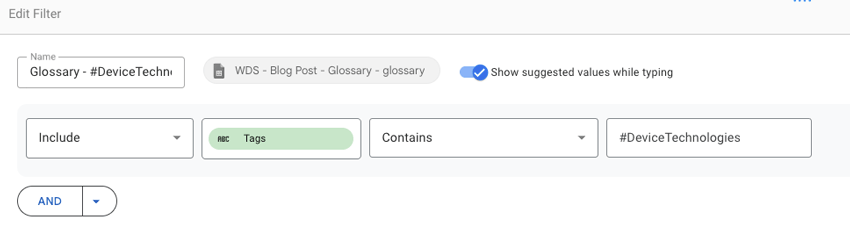
For each topic, here #DeviceTechnologies for a page about the devices and browsers of the users:
- Create a filter “Glossary – #DeviceTechnologies”
- Data source: your glossary data source
- Condition: Include “Tags” Contains “#DeviceTechnologies”
- Copy the glossary table to the page and replace its filter with the tag filter
- Add a “Glossary” title above the table. No controls this time, the list is short
Glossary access from the page footer
At last, add a text link to the glossary page in the report footer, like “Glossary of metrics and dimensions” in my example. I described this kind of footer access to a glossary page in an old article about internal links in Data Studio reports.
Configuration review
As usual, let’s review the full configuration with this small video.
Final thoughts
The Google Sheets data source can be reused by all the reports sharing the same data. The definitions are maintained in one place, by the whole team.
Despite this documentation effort, the glossary won’t spare you from explaining some terms of your report in the middle of a meeting, even though they are right there in this precious resource. And I always take a little pleasure in answering by opening the glossary live, implying that the person asking could have done the same before asking the question. RTFM…
Let’s not forget that any good documentation is also a source of information and context for a non-human reader… But that’s another story.