Need to access to selected date range and related time repository
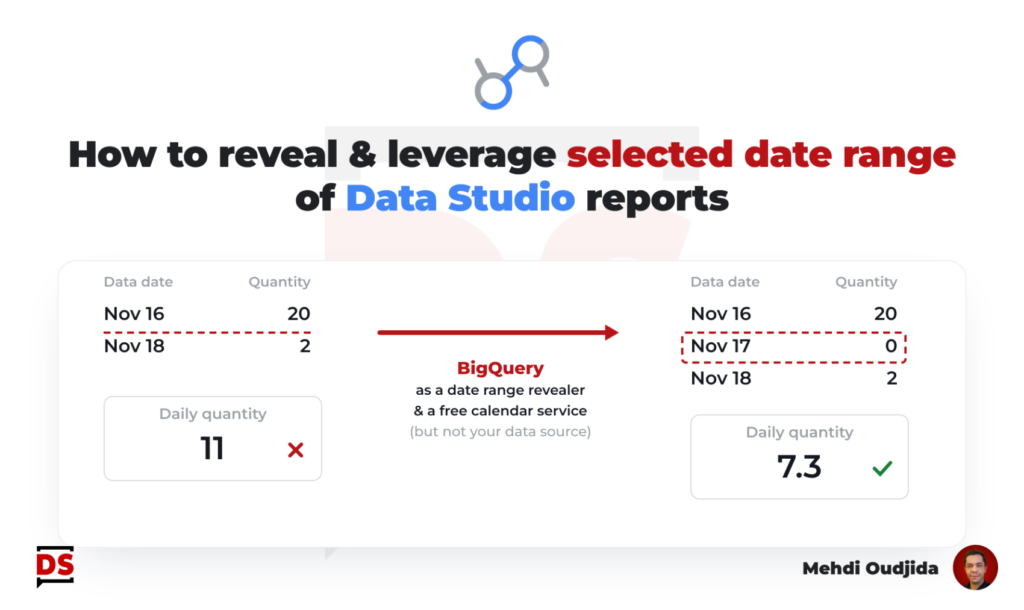
Most of data sources and related APIs provide rows of dated data only if the requested data are available (in other words, when the combination of all requested fields gets values), otherwise no row is returned. It is quite obvious but it also drives the way to manage data when temporality is key inside Google Data Studio reports.
On the other hand, Data Studio doesn’t provide for the moment a way to access to contextual information of the live state of the report, including which date range has been selected (or automatically applied). Only data sources can provide data to leverage for time data…but, as said before, all cases cannot be solved with data dates, especially when no data as been collected for all dates or other required time granularity.
So, we need sometimes a consistent time and calendar management, a dates repository without dependency with visualized data. An absolute reference of time.
Unlock free access to the full article
Access to this article written by Mehdi Oudjida, Data Studio Expert, is completely free: enter your email address to receive an access link to the full article.
Your email address is only used to send the link, and for the newsletter if you tick the box. It is not stored on this site.